



Save up to 73% on plans

AI Video Generator
Sign In
Veo 3.1 Video Generator for Bilingual Storyboards — GLM Image AI

Veo 3 AI Video Generator, Updated for Bilingual Storyboards

If you searched for Veo 3, note that this live text-to-video generator now selects Veo 3.1. The GLM Image AI workflow focuses on bilingual storyboard clips and clearly identifies the model used for every task.

Public VisibilityAllow this result to appear in public inspiration surfaces.
Credits required:—

AI Video Generator

Veo 3.1

AI output preview

GLM Image AI workflow for balanced Veo 3.1 video drafts

A practical process for bilingual storyboarding and cinematic previsualization: define the job, generate a focused draft, and review the result against the original brief instead of relying on vague model claims.

Brief a bilingual scene board for Veo 3.1

Start with the audience, desired reaction, and one deliverable. For bilingual scene boards, describe character purpose, location, shot scale, movement, mood, and continuity notes. A narrow brief gives the generator fewer conflicting instructions and makes the first result easier to evaluate.
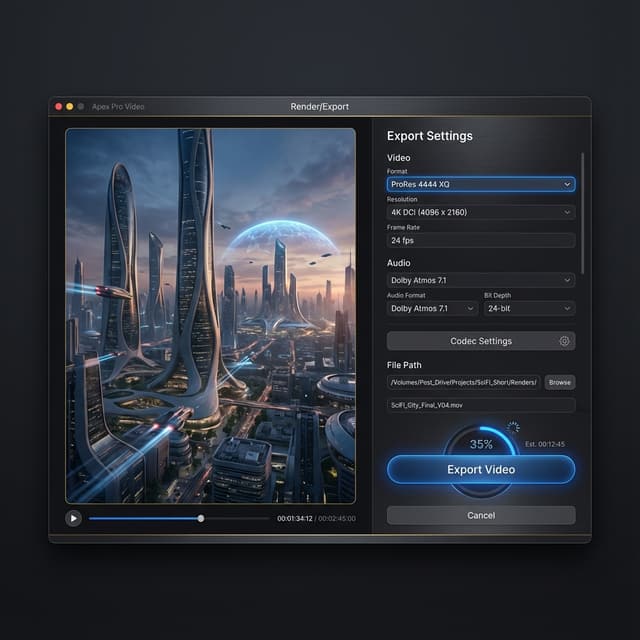
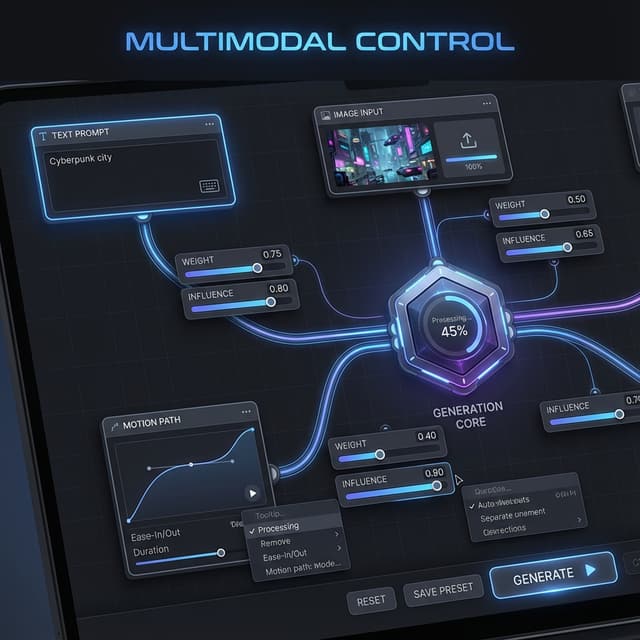
Refine bilingual storyboarding one variable at a time with Veo 3.1

Keep the successful parts of the prompt and revise one dimension—action, framing, pacing, or atmosphere—per attempt. This creates a useful comparison trail for creative teams planning scenes in English or Chinese and shows which instruction actually changed the output.

GLM Image AI Veo 3.1 pre-production review

Treat each generation as a creative draft. Check whether the shot reads consistently across language and cultural context, then inspect motion continuity, unwanted text, object changes, and brand-sensitive details before the clip enters editing or publishing.

How to build pitch visualizations with Veo 3.1

Every generation should answer a production question. These four steps keep bilingual storyboarding and cinematic previsualization grounded in a repeatable review process.

1. Set the context for GLM Image AI Veo 3.1

Decide where the clip will appear, who will see it, and what viewers should understand without narration. A pitch visualizations needs a different opening, pace, and composition from a long-form scene. Record the intended orientation and safe areas in the brief, then choose only settings that are actually available in the generator.

Start the brief

2. Direct one GLM Image AI Veo 3.1 shot

Describe one coherent shot before asking for a sequence. Name the subject, action, environment, camera behavior, lighting, and ending state in that order. For bilingual storyboarding and cinematic previsualization, emphasize character purpose, location, shot scale, movement, mood, and continuity notes. Avoid stacking incompatible styles or unrelated actions in one generation.

Draft the prompt

3. Compare GLM Image AI Veo 3.1 variations

Submit the prompt with Veo 3.1, save the wording that produced a useful composition, and change only the weakest element in the next pass. For GLM Image AI, keep bilingual storyboarding as the fixed review goal while comparing every result at the same viewing size.

Generate a variation

4. Approve the localized campaign concept draft with Veo 3.1

GLM Image AI reviewers should watch the complete output more than once: first for the story beat, then for frame continuity, hands and objects, accidental text, camera jumps, and the final frame. Add any captions, audio, or brand elements in post-production.

Review the result

Why this Veo 3 AI video generator fits bilingual storyboarding and cinematic previsualization

The page connects a high-intent model query to an honestly named Veo 3.1 generator and a workflow tailored to GLM Image AI.

Veo 3 Complete Production

Actual GLM Image AI model: Veo 3.1

The live generator on this page currently selects Veo 3.1 for text-to-video creation. The selected model is visible before generation, so users can judge the output against the model that actually produced it. GLM Image AI keeps this disclosure next to the workflow so the research keyword and active route are not confused.

Veo 3 Reliability

GLM Image AI use cases for Veo 3.1

Examples focus on bilingual scene boards, pitch visualizations, localized campaign concepts, not generic cinematic promises. That makes the page more useful to creative teams planning scenes in English or Chinese and easier to apply to a real brief.

Veo 3 Accessibility

Decisions before the localized campaign concept with Veo 3.1

For GLM Image AI, structured prompts and single-variable revisions help teams choose a direction for localized campaign concepts before spending time on editing, production, or stakeholder review.

Veo 3, Veo 3.1, and the GLM Image AI workflow

GLM Image AI answers practical questions about the active model, bilingual storyboarding, prompting, credits, rights, and human review.

Why does the GLM Image AI Veo 3 page use Veo 3.1?

This URL continues to serve people searching for Veo 3, while the live generator has moved to the currently configured Veo 3.1 route. The page states that change directly instead of presenting the older search term as the active model. This GLM Image AI page keeps the distinction visible in the hero, generator, FAQ, and CTA.

Which model powers the GLM Image AI Veo 3 migration generator?

The current default is Veo 3.1 in text-to-video mode. Availability and selectable settings can change, so treat the model name and controls shown in the live generator as the source of truth for each task. GLM Image AI does not infer hidden capabilities beyond those live controls.

How should I prompt Veo 3.1 for GLM Image AI's workflow?

Use one subject, one main action, a defined environment, and a clear camera instruction. For this GLM Image AI workflow, specify character purpose, location, shot scale, movement, mood, and continuity notes. Add exclusions only for known problems and revise one variable per generation.

What should I verify in a GLM Image AI Veo 3.1 draft?

Check whether the shot reads consistently across language and cultural context. Then review temporal continuity, subject identity, object behavior, accidental words or logos, and the final frame. A convincing preview still needs human review before commercial or public use.

How does GLM Image AI show Veo 3.1 generation cost?

Use the credit estimate and account information displayed by the GLM Image AI generator before submission. Cost can depend on Veo 3.1 and the selected settings; this page does not promise a fixed external-provider price.

What should GLM Image AI users check before commercial use of Veo 3.1 output?

Before publishing a GLM Image AI result, review the current platform terms, input rights, and any brand, likeness, music, or jurisdiction-specific requirements. This page does not grant rights beyond applicable terms or replace legal review.

Create a localized campaign concepts draft with Veo 3.1

The live generator on this page currently selects Veo 3.1 for text-to-video creation. Start with a focused brief for bilingual storyboarding and cinematic previsualization, generate a reviewable draft, and refine only the variables that matter to your audience.